PremierCloud+ Interaction With Print Client Application
The print client application is only run when initiated by a task or request from the PremierCloud+ web application such as printing or previewing cheques. To do this the PremierCloud+ web application sends a request to the web browser you are using to start the print client application on your computer.
The first time this happens the web browser will display a window or message informing you that the website is trying to open or launch the PremierCloud+ Print Client application.
Please follow the relevant instructions for your web browser below to ensure this message is only displayed the first time or prevent it appearing again.
Please note that if you choose not to follow these instructions, then the message from the browser will be displayed every time the PremierCloud+ web application tries to start the print client application.
Google Chrome
- Tick the checkbox to 'Always open links of this type in the associated app'.
- Click on the 'Open PremierCloud+ Print Client' button.
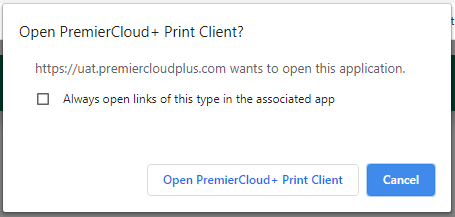
Google Chrome open application dialog window
Firefox
- Tick the checkbox to 'Remember my choice for x-hague links'.
- Click on the 'Open link' button.
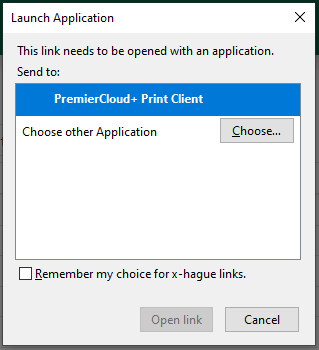
Firefox launch application window
Edge (Chromium)
- Tick the checkbox to 'Always allow uat.premiercloudplus.com / premiercloudplus.com to open links of this type in the associated app'.
- Click on the 'Open' button.
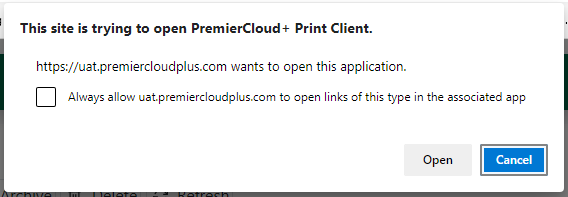
Edge (Chromium) open application dialog window